Apple Developer credentials
Ruby Native needs three things from your Apple Developer account to sign your app and upload it to TestFlight: your Team ID, an App Store Connect API key (with its key ID and issuer ID), and the key's .p8 private key file.
#Team ID
Your Team ID identifies your Apple Developer account. You'll use the same one for all your apps.
- Sign in to developer.apple.com/account.
- Scroll down to the Membership details section.
- Your Team ID is a 10-character alphanumeric string (e.g., ABCDE12345). Copy it.
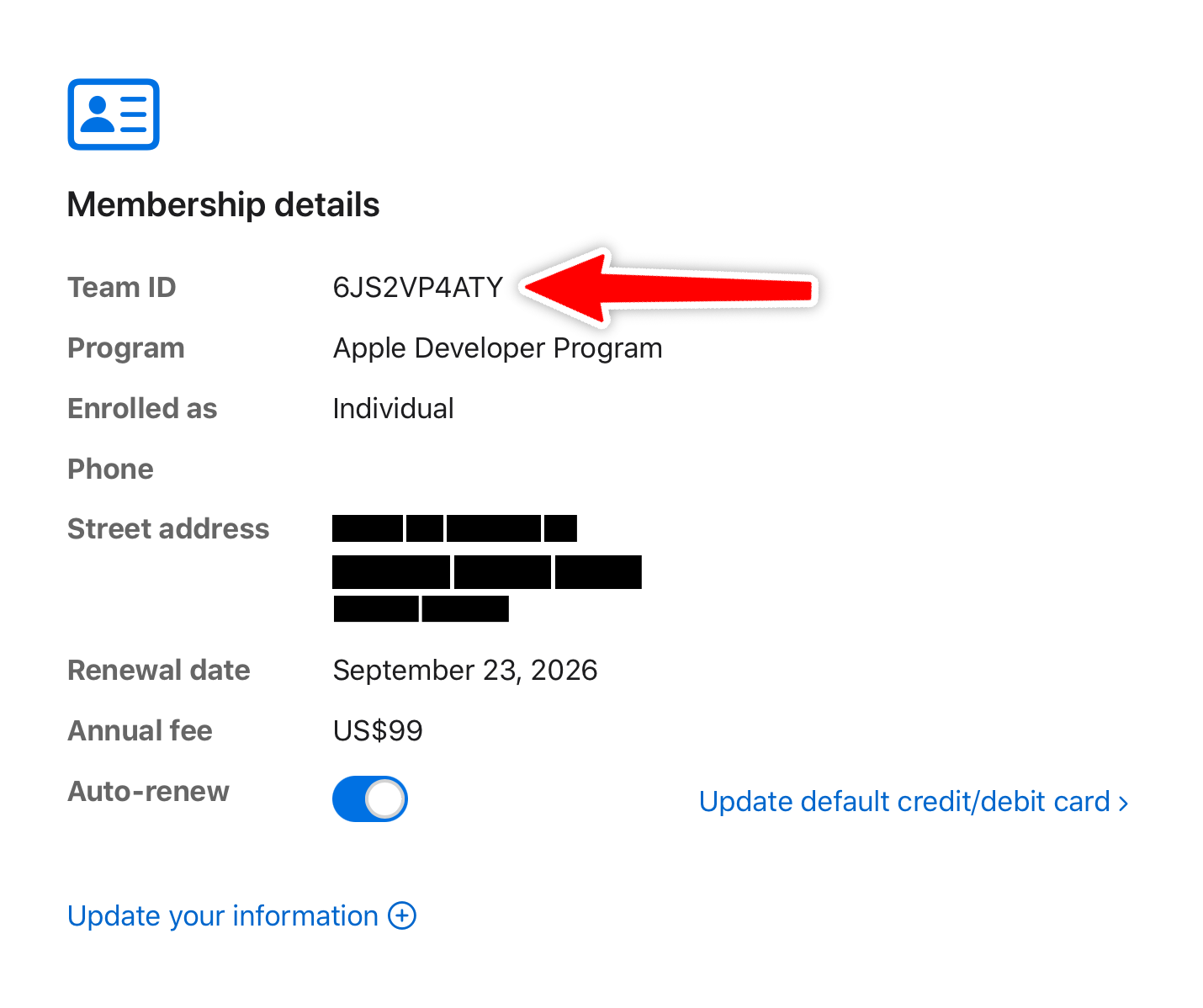
If you're on a team with multiple members, any member can view the Team ID. It's not a secret, just an identifier.
#App Store Connect API key
The API key lets Ruby Native upload builds to TestFlight on your behalf. You create it in App Store Connect, not the Developer portal.
- Go to App Store Connect and sign in.
- Click Users and Access in the top navigation.
- Click the Integrations tab.
- In the left sidebar, click App Store Connect API.
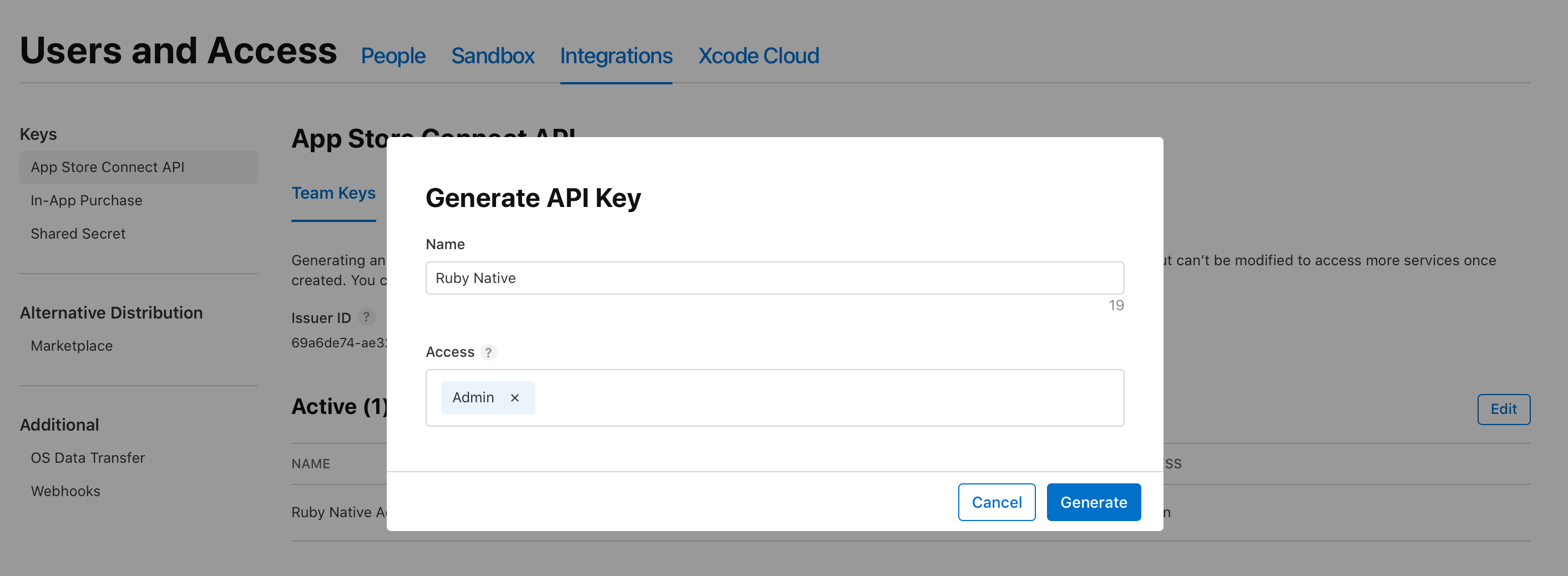
- Under Team Keys, click the + button to generate a new key.
- Enter a name you'll recognize later, like "Ruby Native".
- For access, select Admin. Apple only lets Admin keys sign apps with its cloud-managed certificates and register bundle IDs, and every build does both. A lesser role could upload builds but couldn't sign them. See What Ruby Native does with this key.
- Click Generate.
Make sure it's a Team Key, the kind under Users and Access. An Individual Key, generated from your own user profile, can't access provisioning, so it can't sign your app even with the Admin role.
After generating the key, you'll see it listed in the table. Three values come from this page:
- Key ID: shown in the table next to your key name. A short alphanumeric string like ABC123DEFG.
- Issuer ID: shown at the top of the page, above the key table. A UUID like xxxxxxxx-xxxx-xxxx-xxxx-xxxxxxxxxxxx. This is the same for all keys under your account.
- .p8 file: click Download next to the key. This downloads a file named
AuthKey_XXXXXXXX.p8.
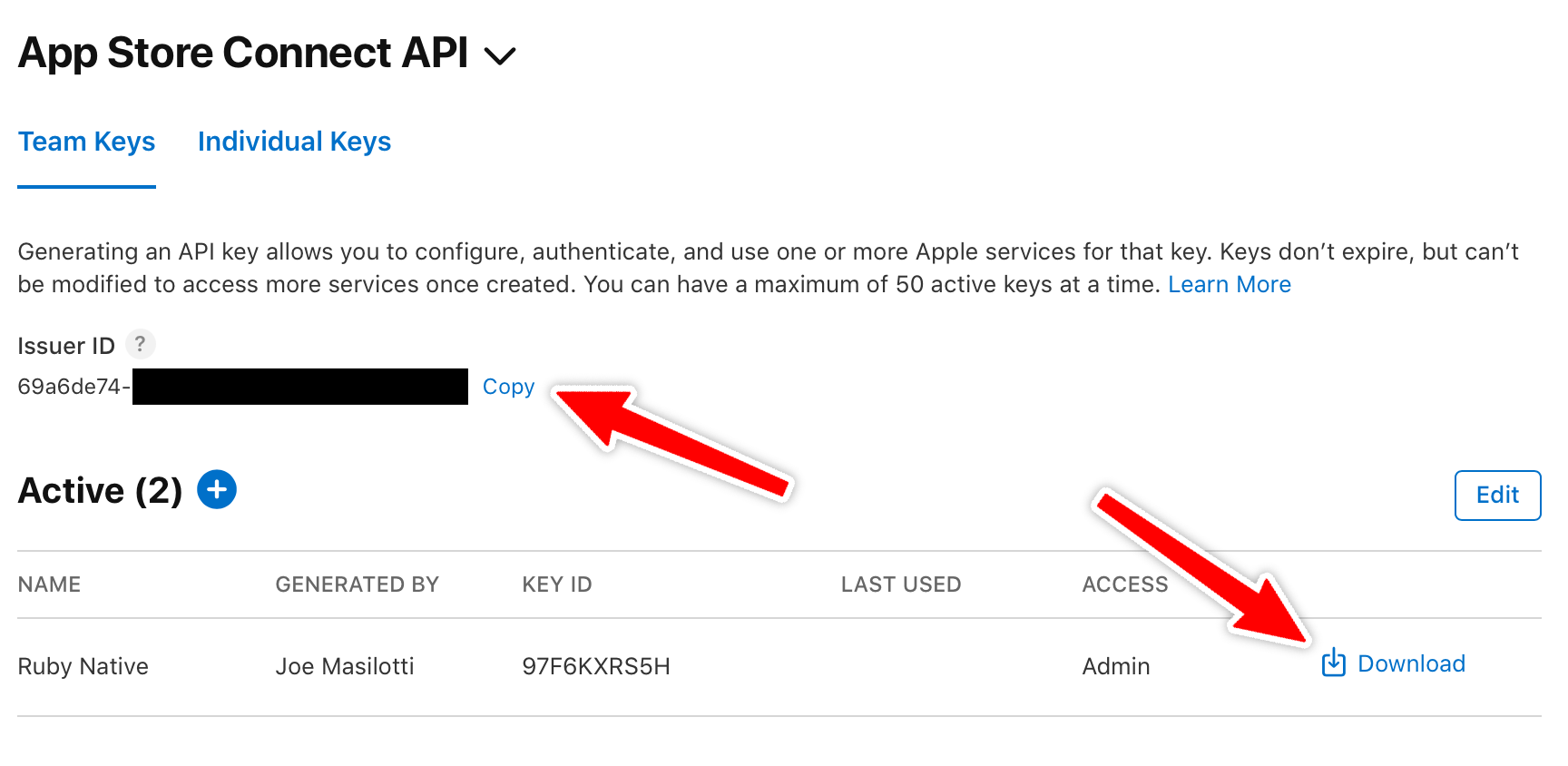
Important: Apple only lets you download the .p8 file once. If you lose it, you'll need to revoke the key and create a new one. Store it somewhere safe.
#Can I reuse an existing key?
Yes, as long as it's a Team Key with the Admin role. An Individual Key can't sign apps, even as Admin. To reuse a key, you'll need the key ID, issuer ID, and the .p8 file you downloaded when you first created it.
#What Ruby Native does with this key
Every call Ruby Native makes with your key falls into one of these buckets:
- Sign and build. Each build runs
xcodebuildwith your key so Xcode can use Apple's cloud-managed distribution certificate and create or reuse a provisioning profile for your bundle ID. Nothing is signed with a certificate we hold. - Register your app ID. Register the bundle ID and turn on the capabilities your config asks for: push notifications, in-app purchases, and associated domains.
- Distribute to TestFlight. Upload the build, keep a "Ruby Native" internal TestFlight group, add each build to it, and add you as a tester.
- Watch for changes. Register a webhook on your app so the dashboard knows when a build finishes processing and when a version changes state in App Store review.
- Optional features. Read your subscription products if you use in-app purchases. If you use automated screenshots, upload them to your listing, creating a new App Store version when none is editable and replacing only the screenshot sets it fills.
Outside of those, Ruby Native never creates apps or changes settings it didn't create. It adds to your account and leaves the rest alone.
#Why Admin
Apple ties two things Ruby Native needs on every build to the Admin role: cloud signing and registering bundle IDs. Apple offers no way to grant either to an App Manager or Developer key, and Team Keys can't be limited to a single app. Uploading builds and managing TestFlight would work with a lesser role, but signing wouldn't, so the build would fail before it reached TestFlight.
#How it's stored
The key ID, issuer ID, and .p8 are encrypted at rest with Rails encrypted attributes. They're decrypted only to sign an API request or to hand to the build runner, where they're masked in logs and destroyed with the runner when the build ends. You can revoke the key at any time in Users and Access. Revoking stops future builds; apps already on TestFlight or in the App Store are unaffected. The security page covers everything else Ruby Native holds and how to take it back.
#What if I don't have an Apple Developer account?
You need an Apple Developer Program membership ($99/year) to distribute apps through TestFlight and the App Store. Ruby Native can't build or upload without one. See the enrollment guide for step-by-step instructions.