Tabs
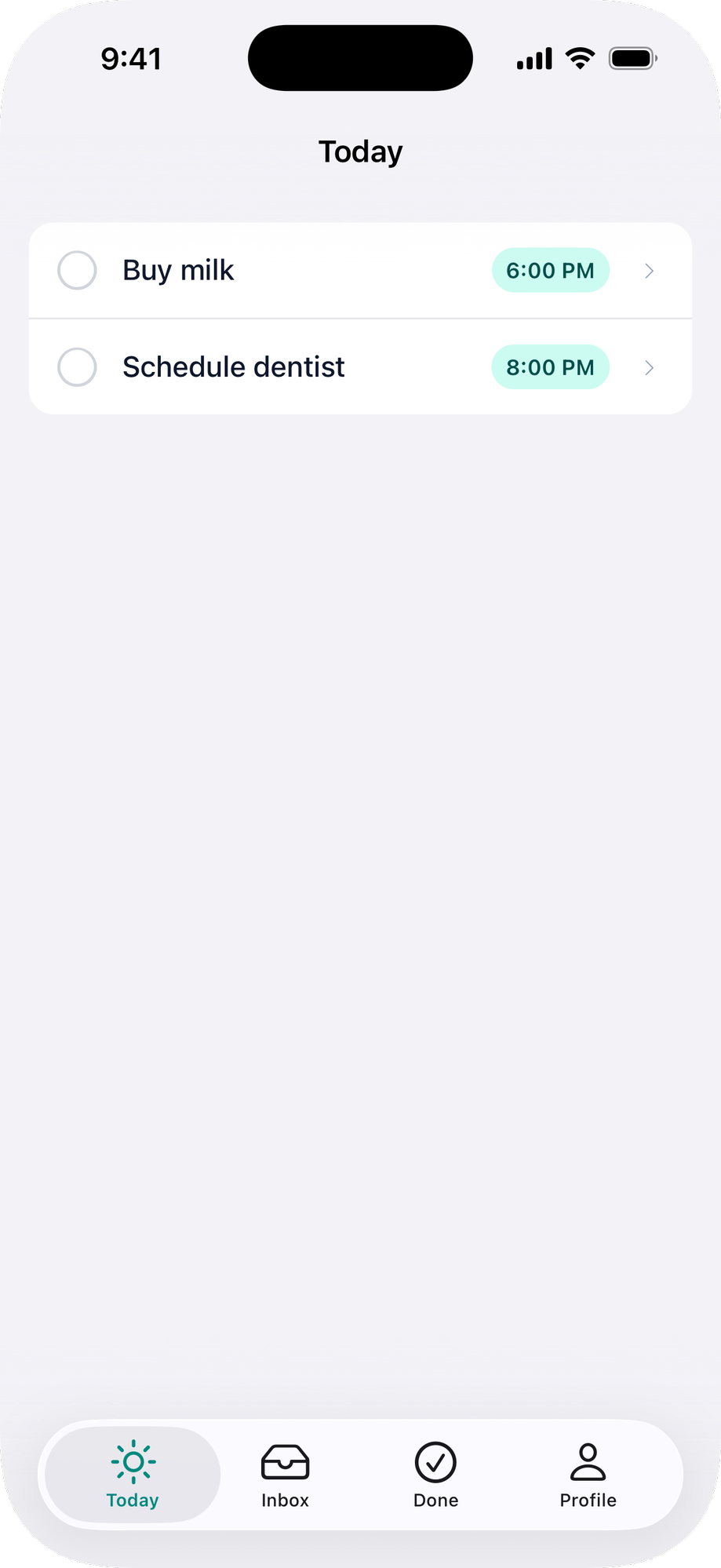
Define your tab bar in config/ruby_native.yml with a title, path, and icon for each tab.
tabs:
  - title: Home
    path: /
    icon: house
  - title: Profile
    path: /profile
    icon: person
You may also omit tabs to hide the tab bar entirely. The app will load entry_path or fall back to /. A single tab behaves the same way: the bar needs at least two tabs to show.
#Showing and hiding the tab bar
Add native_tabs_tag to your layout to tell the app when to show the tab bar.
<%= native_tabs_tag if user_signed_in? %>
Pass enabled: false to dynamically hide the tab bar, for example during edit mode:
<%= native_tabs_tag(enabled: !@editing) %>
import { NativeTabs } from "@ruby-native/react"

export default function Layout({ children }) {
  const { currentUser } = usePage().props

  return (
    <>
      {currentUser && <NativeTabs />}
      {children}
    </>
  )
}
Pass enabled={false} to dynamically hide the tab bar, for example during edit mode:
<NativeTabs enabled={!editing} />
<script setup>
import { NativeTabs } from "@ruby-native/vue"
import { usePage } from "@inertiajs/vue3"
import { computed } from "vue"

const page = usePage()
const currentUser = computed(() => page.props.currentUser)
</script>

<template>
  <NativeTabs v-if="currentUser" />
  <slot />
</template>
Pass :enabled="false" to dynamically hide the tab bar, for example during edit mode:
<NativeTabs :enabled="!editing" />
#Eager loading
By default, each tab's content loads when the user first taps it. To load a tab immediately when the tab bar appears, set eager: true:
tabs:
  - title: Home
    path: /
    icon: house
  - title: Profile
    path: /profile
    icon: person
    eager: true
The first tab always loads immediately (it is the visible tab). Use eager on other tabs that benefit from being ready when the user switches to them.
#Search tab
Mark your app's search screen with search: true:
tabs:
  - title: Home
    path: /
    icon: house
  - title: Search
    path: /search
    icon: magnifyingglass
    search: true
iOS gives the tab the system search treatment: it sits apart from the other tabs with the search appearance, and tapping it loads the tab's path like any other tab.
This currently applies on iOS in Advanced Mode only. Normal Mode and Android read the option and ignore it, so it is safe to keep in your config while support catches up.
#Localization
Tab titles can be translated in your app's own locale files, the same way error screen copy works. Give a tab a key: and put its copy under ruby_native.tabs.<key>.title.
tabs:
  - title: Home
    key: home
    path: /
    icon: house
# config/locales/it.yml
it:
  ruby_native:
    tabs:
      home:
        title: Casa
The device's language picks the translation. title: stays the fallback for a language you have not translated yet, so a tab always has a label.
Once every tab has a key, you can drop title: and keep all of your copy in locale files.
tabs:
  - key: home
    path: /
    icon: house
Each tab needs its own key. Two tabs sharing one read the same translations, so one of them is always mislabeled.
#Tab routing
When a user clicks a link that belongs to a different tab, the app automatically switches to that tab. This works with Turbo, Inertia, and plain HTML links for GET requests. Form submissions (POST, PUT, DELETE) always stay in the current tab, and server-side redirects are not intercepted.
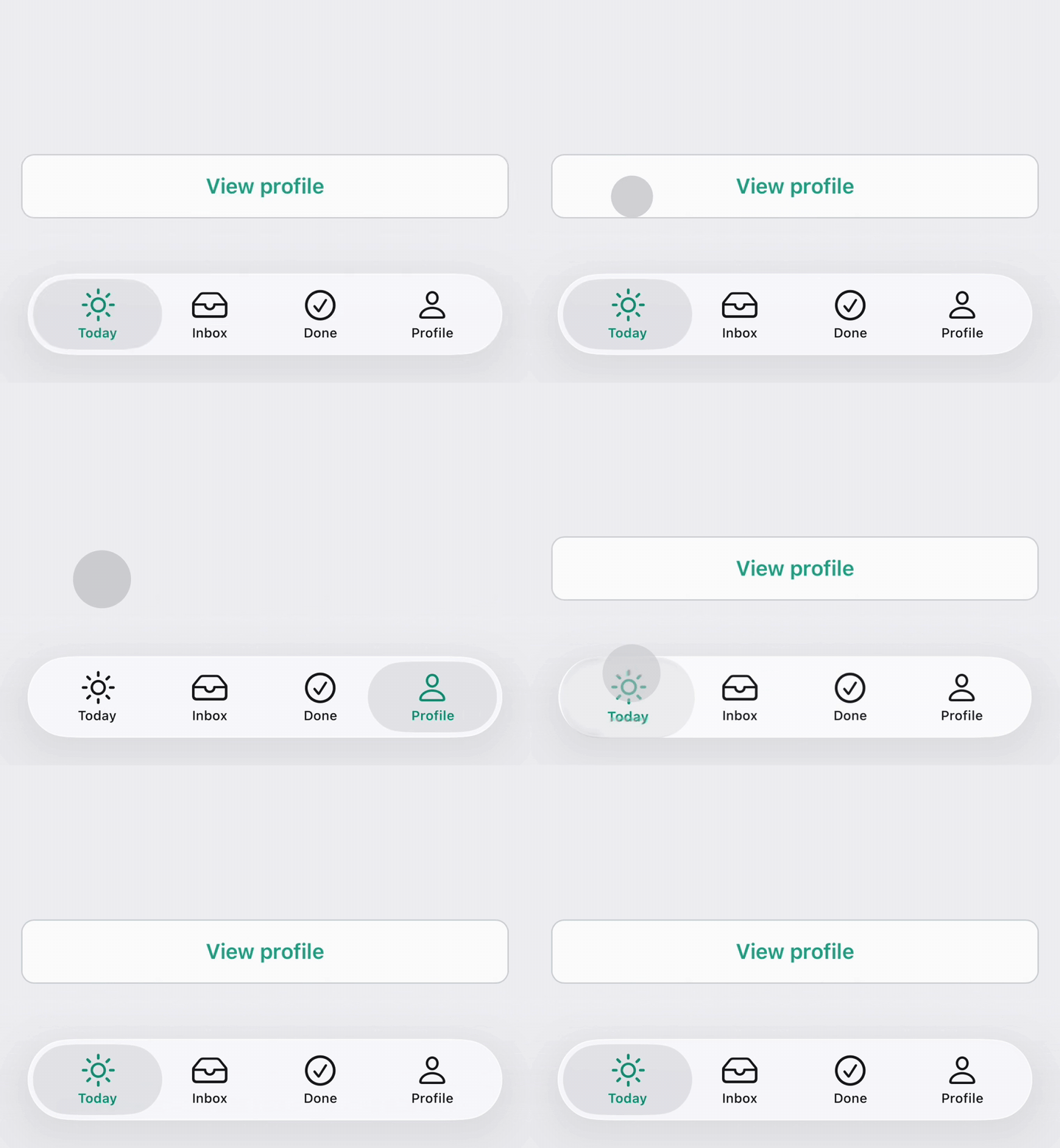
By default, each tab matches URLs that start with its path. A tab with path: /inbox matches /inbox, /inbox/123, /inbox/archive, etc.
#Disabling routing
Set auto_route: false to disable routing for a tab entirely.
tabs:
  - title: Home
    path: /
    icon: house
    auto_route: false
  - title: Inbox
    path: /inbox
    icon: tray
  - title: Profile
    path: /profile
    icon: person
#Custom route prefixes
For more control, set auto_route to an array of route prefixes. This replaces the default prefix match on path.
tabs:
  - title: Explore
    path: /explore
    icon: binoculars
    auto_route:
      - /explore
      - /breweries/
      - /neighborhoods/
  - title: Passport
    path: /passport
    icon: wallet.bifold
A trailing slash means "only match sub-paths." /breweries/ matches /breweries/123 but not /breweries. Without the trailing slash, both would match.
When multiple tabs match a URL, the longest prefix wins. If no tab matches, the link navigates within the current tab as usual.
#JavaScript API
RubyNative.visit() is tab-aware. Call it to navigate to any URL and the app will switch tabs if needed.
RubyNative.visit("/inbox/123") // switches to Inbox tab and navigates
RubyNative.visit("/profile")   // switches to Profile tab
If the URL matches the current tab (or no tab at all), it navigates locally using Turbo, Inertia, or a standard page load.